
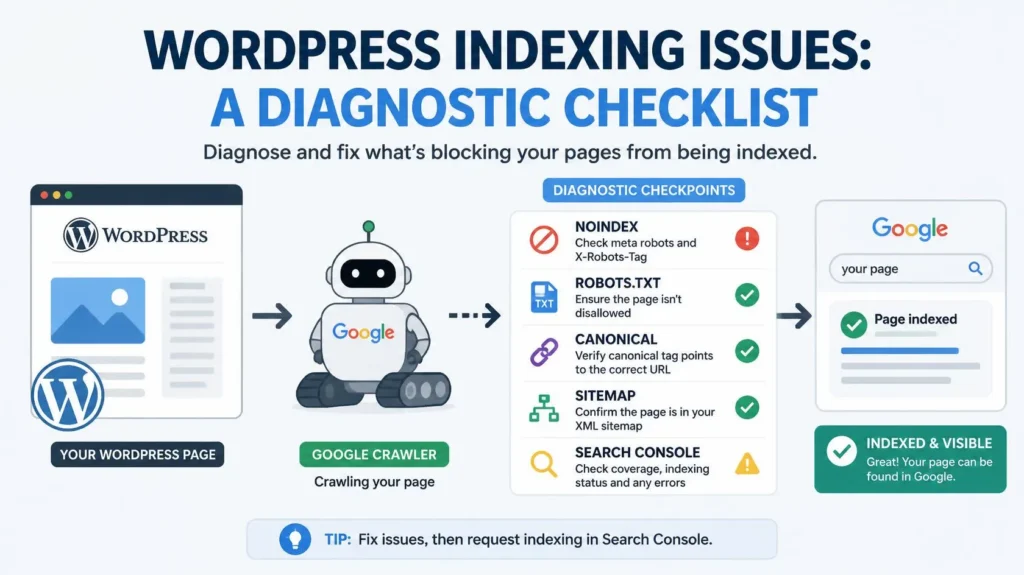
A WordPress page can be published, load perfectly in your browser, appear in your sitemap, and still be missing from Google. The reason is that discovery, crawling, rendering, indexing, and canonical selection are different stages.
The fastest way to diagnose WordPress indexing issues is to start with the exact Google Search Console status for the affected URL, then test the specific layer that status points toward. Do not begin by changing five SEO settings at once.
Google’s URL Inspection tool shows whether Google can crawl a URL, whether indexing is allowed, whether Google has selected another canonical URL, and whether Google has successfully fetched the page.
This checklist walks through that diagnosis in the order that makes the most sense.
Why Is My WordPress Page Not Indexed?
A WordPress page usually falls into one of several categories: Google has not discovered it, Google discovered it but has not crawled it, Google crawled it but has not indexed it, a directive prevents indexing, the URL is treated as a duplicate, the server response is problematic, or the page itself does not provide enough distinct value for Google to select it.
That distinction matters because the fix for a noindex page is completely different from the fix for a page marked “Crawled, currently not indexed.”
Think of indexing as a chain:
Discover → Crawl → Render → Understand → Select → Index
A break near the beginning usually calls for technical investigation. A page that reaches the later stages but remains unindexed may need content, duplication, canonical or quality analysis.
For a wider technical review, you can also use the WordPress SEO Service as the commercial resource connected to this diagnostic guide.
Check the Exact Search Console Status First
Before editing WordPress, inspect the exact URL in Google Search Console.
Open URL Inspection, enter the full URL, and review these signals:
- Is the URL on Google?
- Was the URL crawled?
- Is crawling allowed?
- Is indexing allowed?
- What canonical URL did Google select?
- When was the last crawl?
- Was the page successfully fetched?
Google specifically recommends URL Inspection for diagnosing individual indexing problems and confirming whether fixes have worked.
Do not confuse the live test with historical indexing status. A live test can show that Google can access a page now, while the indexed version can reflect an earlier crawl. Google advises using live testing after a fix and then requesting indexing where appropriate.
A useful diagnostic rule
Search Console status first. WordPress settings second.
That single habit prevents a lot of unnecessary changes.
The WordPress Indexing Checklist
1. Check WordPress Search Engine Visibility
Go to:
WordPress → Settings → Reading
Look for:
Discourage search engines from indexing this site
For a public website that should appear in Google, this should not be enabled.
WordPress documents that this setting can generate a noindex,nofollow robots directive in the page head.
This is a site-level check, so treat it as an emergency check when many important pages disappear at once.
Example:
A website launches after development. The developer used the visibility setting to keep the staging site out of search, then copied the configuration to production. The homepage, services, blog and other pages can all carry the unwanted indexing restriction.
After changing the setting, do not assume the problem is solved. Open the public page source and confirm the unwanted directive has actually disappeared.
2. Check Your SEO Plugin’s Indexing Settings
WordPress SEO plugins can control page-level and content-type indexability.
If you’re using Rank Math, check both:
- global settings for the relevant post type
- the individual page or post’s robots/indexing settings
Do not assume that a page is indexable simply because the global setting looks correct.
A page can inherit one rule from a template or content type and another rule from an individual page override.
Check important page types separately:
- Posts
- Pages
- Categories
- Tags
- Author archives
- Date archives
- Custom post types
- Media or attachment pages
A useful principle is to decide which URLs deserve to exist in search before deciding which settings should be applied.
Your Technical SEO Service and SEO Audit Service pages cover the wider technical and diagnostic context behind these checks.
3. Check for a noindex Directive
Search the page source for:
<meta name="robots" content="noindex">Also inspect Google-specific directives such as:
<meta name="googlebot" content="noindex">and inspect HTTP response headers for:
X-Robots-Tag: noindexGoogle states that noindex prevents indexing when Googlebot can crawl the resource and see the directive. If robots.txt blocks the page first, Google may not be able to see the noindex instruction.
That produces an important diagnostic relationship:
robots.txt blocks crawling → Google may not see noindex
So do not treat robots.txt and noindex as interchangeable controls.
4. Check robots.txt
Open the live robots file at:
yourdomain.com/robots.txt
Look for rules affecting the affected URL or directory.
Google describes robots.txt as a crawl-management mechanism. It tells crawlers which pages or files they can or cannot request.
A common mistake is using robots.txt as an indexing control.
That is not the right tool for saying “crawl this page but do not put it in Google.” Google recommends noindex when the goal is to keep a crawlable page out of Search.
5. Check the Canonical URL
A canonical tells search engines which URL represents the preferred version of duplicate or substantially similar content.
Inspect the affected page for:
<link rel="canonical" href="https://example.com/preferred-url/">For an important standalone page, verify that the canonical points to the URL you actually want Google to treat as the primary version.
Also check Search Console’s Google-selected canonical value.
Google can select a different canonical from the one you specify, because canonical selection uses multiple signals rather than blindly accepting one tag.
Canonical does not mean “force index”
A canonical tag is not an indexing command.
If page A points canonically to page B, Google may treat A as a duplicate and prefer B in search.
This is why the question is not simply:
“Does page A have a canonical?”
The better question is:
“Does the canonical relationship make sense for the content represented by this URL?”
6. Check the XML Sitemap
A sitemap helps Google discover URLs and communicates which URLs you prefer as canonical. Google explicitly recommends putting preferred canonical URLs in sitemaps when multiple versions exist.
But:
A sitemap is a discovery signal, not a guarantee of indexing.
A page can be included in a sitemap and still remain unindexed.
The correct sitemap workflow is:
- Confirm the URL exists in the sitemap.
- Confirm the sitemap contains the canonical URL.
- Confirm the URL returns the expected response.
- Inspect the URL in Search Console.
- Diagnose the actual indexing status.
- Fix the underlying issue.
Google’s Search Console guidance also recommends the Sitemaps report for submitted sitemaps and monitoring their crawl and indexing data.
7. Check Internal Links
Sitemaps are useful, but internal links provide contextual paths through the site.
Google explains that links help it find new pages and understand the relationship between linked pages. It recommends crawlable HTML links with an href attribute and descriptive anchor text.
Ask:
- Is the page linked from another relevant page?
- Is it linked from a category, service or hub page?
- Does the link use a real
<a href>element? - Is the anchor descriptive?
- Is the page effectively orphaned?
An orphan page may exist in WordPress and in the sitemap but have very little contextual support elsewhere on the site.
For page-level work, On-Page SEO Service is a relevant deeper resource because internal links, headings, relevance and page structure all interact.
8. Check the HTTP Status Code
A normal indexable page generally needs to return the response you expect.
Check for:
200 OK3013024044105xx
A 301 may be correct when a page permanently moved.
A 404 or 410 may be correct when content no longer exists.
A 5xx can point to server or application problems.
Google recommends returning an actual 404 response for pages that no longer exist instead of leaving an error-looking page with a successful 200 status.
Soft 404 deserves special attention
A soft 404 happens when a URL returns a successful response but appears to users or Google to contain an error or missing page.
For example, a WordPress template might return:
200 OK
Page not found
Google can identify that situation and exclude the URL.
This is particularly useful to check after redesigns, theme changes, plugin conflicts and custom templates.
9. Check JavaScript Rendering
Google Search can process JavaScript, but rendering is still a separate stage in its workflow.
Google describes Search processing as:
Crawling → Rendering → Indexing
The rendered HTML can affect what Google understands from a JavaScript-driven page.
For a WordPress site, check this when:
- critical content loads only after JavaScript executes
- a page is nearly empty before rendering
- a page builder or plugin fails under crawler rendering
- important links are created incorrectly through scripts
- critical resources are blocked
- the browser shows content that the rendered test does not
Use URL Inspection or the Rich Results Test to compare what users see with what Google can process.
10. Check Cache, CDN and Security Layers
WordPress sites rarely have only WordPress in the request path.
The response can be affected by:
- caching plugins
- CDNs
- firewalls
- security plugins
- hosting rules
- server headers
- redirect systems
A useful example is an old cached response that still contains noindex after the WordPress setting has been corrected.
Another is intermittent 403, 429 or 5xx behavior during crawler requests.
Google’s crawl troubleshooting documentation specifically discusses server response time, redirect chains, resource loading, soft 404s and server errors as crawl-related concerns.
After making an indexing-related change, purge the appropriate caches and verify the response that is actually served publicly.
Discovered, Currently Not Indexed vs Crawled, Currently Not Indexed
These two Search Console statuses are often confused, but they point to different stages.
| Status | What it means | First diagnostic direction |
|---|---|---|
| Discovered, currently not indexed | Google knows about the URL but has not crawled it yet | Check discovery paths, internal links, sitemap signals, technical access and site-wide crawl conditions |
| Crawled, currently not indexed | Google crawled the URL but has not indexed it | Check canonical, duplication, content quality, distinctiveness and whether the page deserves its own search result |
Excluded by noindex | Google found a directive telling it not to index | Remove the unwanted directive if the page should be indexed |
| Blocked by robots.txt | Google is prevented from crawling the URL | Review the robots rule |
| Page with redirect | The URL resolves elsewhere | Inspect the destination and redirect chain |
| Not found | URL returns 404 or equivalent | Restore, redirect or intentionally leave removed |
| Soft 404 | URL looks like a missing page even though the response may be successful | Fix the page or return the correct status |
| Server error | Google cannot reliably fetch the page | Investigate hosting, application and server behavior |
| Duplicate, Google chose different canonical | Google selected another URL as the representative version | Review duplication and canonical signals |
Google’s current Search Console guidance makes URL Inspection the best place to investigate a specific URL, while the Page Indexing report gives broader visibility into why URLs are excluded.
What Should You Do About “Discovered, Currently Not Indexed”?
Start by asking whether Google has enough reason and opportunity to crawl the page.
Check:
- Is the URL included in the XML sitemap?
- Is the URL linked from relevant pages?
- Does the URL return a clean response?
- Is the site or directory blocked?
- Are there huge numbers of low-value URLs competing for crawl attention?
- Does the page belong to a clear site hierarchy?
Do not repeatedly submit the same URL through Request Indexing without understanding the status.
Google says request indexing is useful for individual pages after changes, but the request itself is not a guarantee that the page will appear in the index.
What Should You Do About “Crawled, Currently Not Indexed”?
This is where many WordPress owners make the wrong diagnosis.
If Google crawled the page successfully, an access problem is less likely to be the main issue.
Now investigate:
- duplicate or near-duplicate content
- canonical selection
- weak differentiation
- thin pages
- low-value archives
- pages with little unique information
- pages that overlap another URL’s intent
- content that does not satisfy the searcher’s purpose
Imagine a WordPress site with 30 location pages where only the city name changes.
Technically, all 30 pages can be crawlable, indexable and included in the sitemap.
The deeper problem may be that the pages do not provide enough distinct information to justify separate search visibility.
That is a content-architecture problem, not something another sitemap submission will solve.
When the Real Problem Is Content
Indexing does not end with technical accessibility.
A useful diagnostic question is:
If Google can access this page, what makes this URL meaningfully different from the other URLs it already has?
Look for:
- unique subject matter
- unique search intent
- original examples
- useful supporting detail
- clear audience relevance
- meaningful internal relationships
- accurate business information
- evidence where claims require it
- stronger usefulness than a generic template
Avoid adding words simply to make the page longer.
A 1,500-word page can be substantially more useful than a 4,000-word page if it answers the actual search better.
For content architecture and search-intent work, your Content Strategy & SEO Content Writing Service is the relevant deeper service resource.
Practical WordPress Indexing Examples
Example 1: Accidental site-wide noindex
Symptom: Almost every important page disappears.
Likely cause: WordPress Reading visibility or another site-wide robots rule.
Diagnosis: Check Settings → Reading, then inspect page source.
Fix: Remove the unintended directive.
Validation: Live-test the homepage and one representative service page.
Example 2: Rank Math says index, Google says no
Symptom: The WordPress page settings look correct, but Search Console reports a noindex state.
Likely cause: Another layer is generating the directive.
Diagnosis: Inspect source and response headers.
Fix: Identify which system actually outputs the directive.
Validation: Recheck the live URL, not just the WordPress admin screen.
Example 3: Google selected another canonical
Symptom: The page is accessible and indexable but another URL is shown as canonical.
Likely cause: Duplicate or substantially similar content, conflicting canonical signals, or stronger signals pointing to another URL.
Diagnosis: Compare the affected page with the Google-selected URL.
Fix: Consolidate duplicates or differentiate the pages where separate intent genuinely exists.
Validation: Inspect the affected URL again after Google recrawls.
Example 4: Sitemap contains the page, but the page remains unindexed
Symptom: The sitemap looks healthy.
Likely cause: The sitemap is working but does not solve the underlying indexing decision.
Diagnosis: Use URL Inspection and Page Indexing.
Fix: Follow the status-specific diagnosis.
Validation: Monitor the URL after the technical or content fix.
Example 5: Elementor or JavaScript changes the page after load
Symptom: The browser shows the correct page, but rendered content appears incomplete.
Likely cause: Important content or resources are not available during Google’s rendering process.
Diagnosis: Test the URL and inspect rendered output.
Fix: Make critical content and links accessible without depending on fragile client-side behavior.
Validation: Re-run the live test.
For performance-related troubleshooting, you can also review the Website Speed Optimization Service, especially where slow or resource-heavy pages affect rendering or user experience.
A Better Fixing Workflow: Status → Test → Fix → Validate → Monitor
Use this workflow instead of changing everything simultaneously.
Step 1: Identify the status
Open URL Inspection and record the exact reason.
Step 2: Test the relevant layer
If it says noindex, inspect robots metadata.
If it says robots blocked, inspect robots.txt.
If it says duplicate, inspect canonical relationships.
If it says crawled but not indexed, inspect content and duplication.
If it says server error, inspect the server response.
Step 3: Make one logical correction
Do not change robots.txt, canonical tags, redirects and page content simultaneously unless the evidence clearly shows all of them are wrong.
Step 4: Verify the live result
Confirm that the actual public response changed.
This matters because caches, CDNs and security layers can keep serving an older result.
Step 5: Request indexing where appropriate
For an individual changed URL, Google provides Request Indexing through URL Inspection. Google also recommends sitemaps for communicating multiple new or updated URLs.
Step 6: Monitor
Do not treat “Request Indexing” as the end of the job.
Reinspect the URL, monitor the Page Indexing report and confirm that the technical state remains correct.
Common WordPress Indexing Mistakes
Repeatedly requesting indexing
A request does not fix a technical problem.
Fix the cause first.
Blocking a page with robots.txt and expecting noindex to work
Google needs to crawl a page to see the noindex instruction.
Assuming sitemap inclusion means indexing
It does not.
A sitemap communicates URLs. It does not force Google to index them.
Checking only WordPress admin settings
The final response Google receives can be altered by plugins, themes, caching, CDNs, server headers and security systems.
Treating every excluded URL as an error
Some URLs should remain out of the index.
Examples include certain internal search URLs, thin utility pages, duplicate URLs and content intentionally marked noindex.
The goal is not maximum indexation.
The goal is correct indexation.
Creating dozens of similar location or service pages
Publishing many URLs is not the same as creating useful search assets.
Every indexable page should have a defensible purpose.
Ignoring internal linking
An important URL should not exist only in a sitemap. Relevant internal links create contextual relationships and additional crawl paths.
Final WordPress Indexing Checklist
Before considering the issue resolved, verify all of these:
WordPress search engine visibility allows indexing
Page-level SEO settings allow indexing
No accidental
noindexNo unintended
X-Robots-Tagrobots.txt does not block the required URL
URL returns the intended HTTP status
No unnecessary redirect chain
Canonical is correct
Google-selected canonical makes sense
Preferred URL appears in the sitemap
Page has relevant internal links
Important content is visible to Google after rendering
Cache/CDN/security layers are not serving the wrong response
Page is meaningfully different from duplicate URLs
Page satisfies its search intent
URL Inspection has been rerun after the fix
Request Indexing has been used when appropriate
Page Indexing is monitored afterward
When Should You Run a Broader WordPress SEO Audit?
A single missing URL can usually be diagnosed individually.
A larger audit makes more sense when:
- many pages suddenly become excluded
- a migration caused indexation changes
- a redesign changed URLs or templates
- a plugin change affected metadata
- canonical signals became inconsistent
- an entire content type is affected
- service or location pages are being excluded in groups
- the site has many duplicate or orphan URLs
- Search Console shows a broad technical pattern
For that situation, an SEO Audit Service can connect the indexing problem with site architecture, content, technical SEO, internal linking and implementation priorities.
How WordPress Indexing Connects to the Wider SEO System
Indexing is not isolated from the rest of SEO.
A page needs a technical path to Google, but it also needs a clear purpose.
That means the following relationships matter:
Website architecture → discovery
Internal links → contextual relationships
Canonical signals → URL consolidation
Content → relevance and differentiation
Technical accessibility → crawling and rendering
Search intent → page usefulness
Conversion paths → business value after the visit
Your SEO Friendly Web Design Service connects architecture, navigation, content hierarchy, internal linking and technical foundations during the website-building process.
For ecommerce stores, indexing can become more complicated because product, category, filter, variant and pagination URLs create a much larger URL environment. The related Ecommerce SEO Service addresses those broader ecommerce-specific structures.
Once a page is correctly indexed, the next question becomes whether it satisfies visitors and supports the intended business action. That is where Conversion Rate Optimization becomes relevant.
A Note About Search and AI Visibility
Correct indexability also matters beyond traditional search.
Search systems and AI-powered discovery depend on accessible information, clear entities, useful content and understandable relationships.
That does not mean adding a special “AI indexing” setting to WordPress.
Google’s current guidance continues to position normal SEO fundamentals such as crawlability, useful content, links and technical accessibility as foundational for its AI search experiences.
For the broader subject, see the AEO & GEO Consulting resource.
Connect With Md Mynul Hassan
This guide is part of my broader work around technical SEO, WordPress SEO, search visibility, AEO and GEO.
You can connect with me through:
You can also start from the Md Mynul Hassan homepage to explore the wider SEO services, resources and case-study content.
The Main Takeaway
A WordPress indexing issue should be diagnosed from Google’s evidence, not from guesswork.
Start with the exact Search Console status. Then test the specific layer involved: indexability, crawling, canonicalization, sitemap discovery, server response, rendering, internal links or content quality.
The most useful question is not:
“How do I force Google to index this page?”
It is:
“Why has Google reached this decision about this URL, and what evidence tells me which part of the system needs to change?”
That approach produces safer fixes and a clearer understanding of the website as a whole.